docs
License Seat Optimizer (Inactive User Auditor) — User Guide
Works in: Jira (admin page) and Confluence (General configuration) Hosting: runs entirely on Atlassian Forge, with no outbound network access. Your user list is read in your browser and never stored.
The Seat Optimizer finds users who haven’t been active for a set number of days and estimates what removing their seats would save. It works from the user export that org admins download from admin.atlassian.com. It never deactivates anyone: you act on its list yourself in admin.atlassian.com.
Quick start
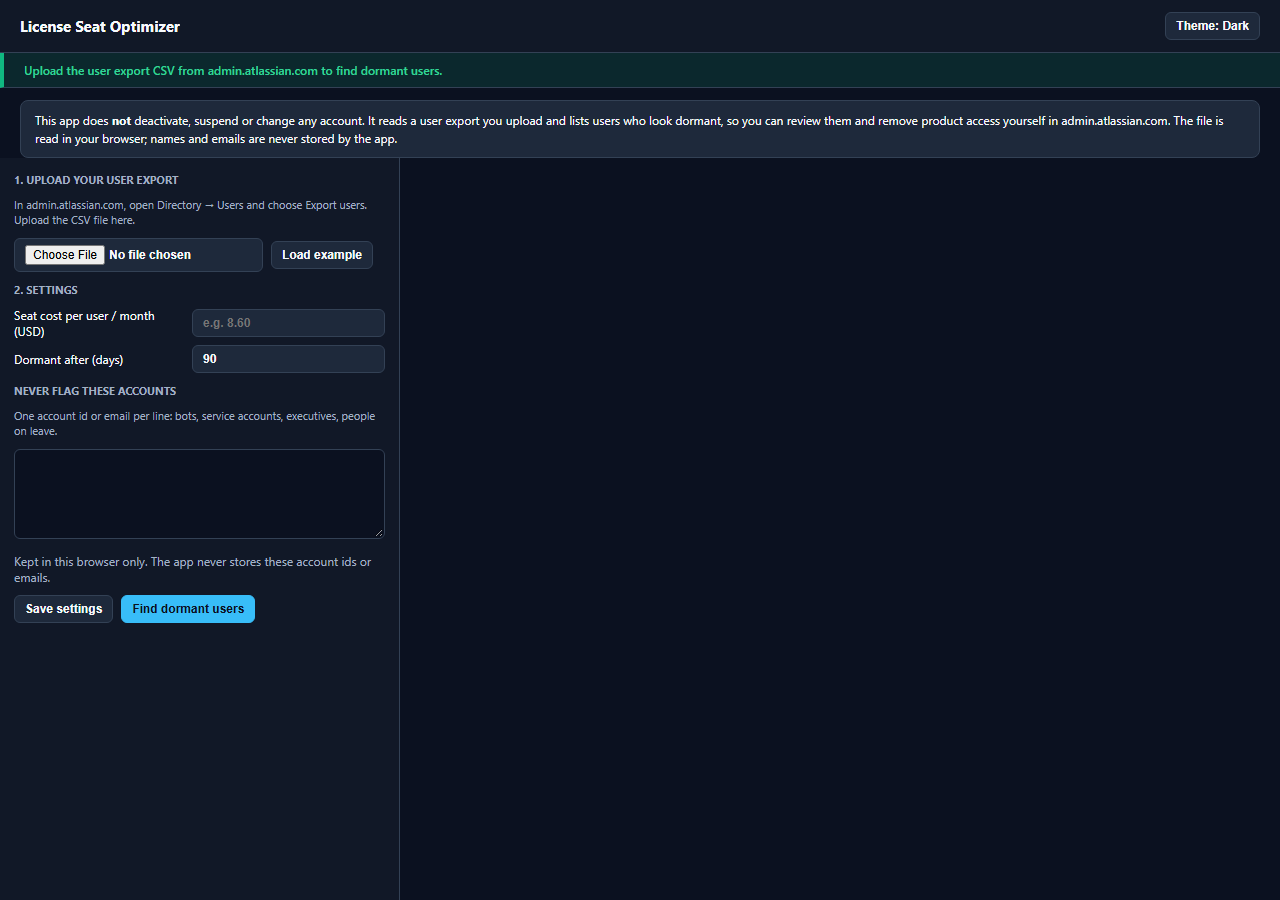
- In admin.atlassian.com, open Directory → Users and choose Export users.
- Open the Seat Optimizer: Jira settings → Apps, or Confluence General configuration.
- Upload the CSV. The app detects the Account id, Name, Email and Status columns, plus the last-active column for each product. Correct any column, and the Date format, if needed.
- Tick the product whose seats you are reviewing. If you tick several, a user counts as dormant only if they are inactive in all of them. Empty cells and “Never” count as never active.
- Enter the Seat cost per user / month (USD) and Dormant after (days), which defaults to 90.
- Optionally list accounts under Never flag these accounts, one account id or email per line: bots, service accounts, executives, people on leave.
- Click Find dormant users.
The result lists dormant users with days inactive, and gives the monthly and yearly savings. Users whose status is already suspended, deactivated or removed are counted separately and not billed.
Safety
- The minimum dormancy threshold is 14 days, so people back from a short holiday are never flagged.
- Nothing is changed in your organisation. Confirm each user in admin.atlassian.com before removing access.
- The “never flag” list and column preferences are kept in your browser only.
What is stored
Only your seat cost, your threshold, and the totals of the last audit: user counts, the dormant count and the savings. The user list itself, including names, emails and account IDs, is never stored.
Limits
| Limit | Value |
|---|---|
| Dormant users per audit | 10,000 |
| Users shown on screen | 1,000 |
| Dormancy threshold | 14 to 3,650 days |
| “Never flag” entries | 500 |
Permissions
| Scope | Why |
|---|---|
storage:app |
Save your settings and the last audit’s totals. |
The app calls no Jira or Confluence API. Jira and Confluence don’t expose last-active dates, so the export is the source.
FAQ
Why do I need to upload a CSV? Last-active dates are only available in the admin.atlassian.com user export.
Are the savings exact? They are an estimate from the cost you enter. Your actual bill depends on your Atlassian plan and tier.
What happens if the licence lapses? Audits and saving settings are refused until the licence or trial is active again.