docs
Markdown Tree Studio — User Guide
Works in: Confluence (page macro, and a space page for import and export) Hosting: runs entirely on Atlassian Forge, with no outbound network access. Files are read in your browser and pages are created through Confluence’s own API.
Markdown Tree Studio does three things:
- Import a folder of Markdown files as Confluence pages, keeping the folder structure as the page tree.
- Export a Confluence page and everything under it as a
.zipof Markdown files. - Show live Markdown on any page with the Markdown macro.
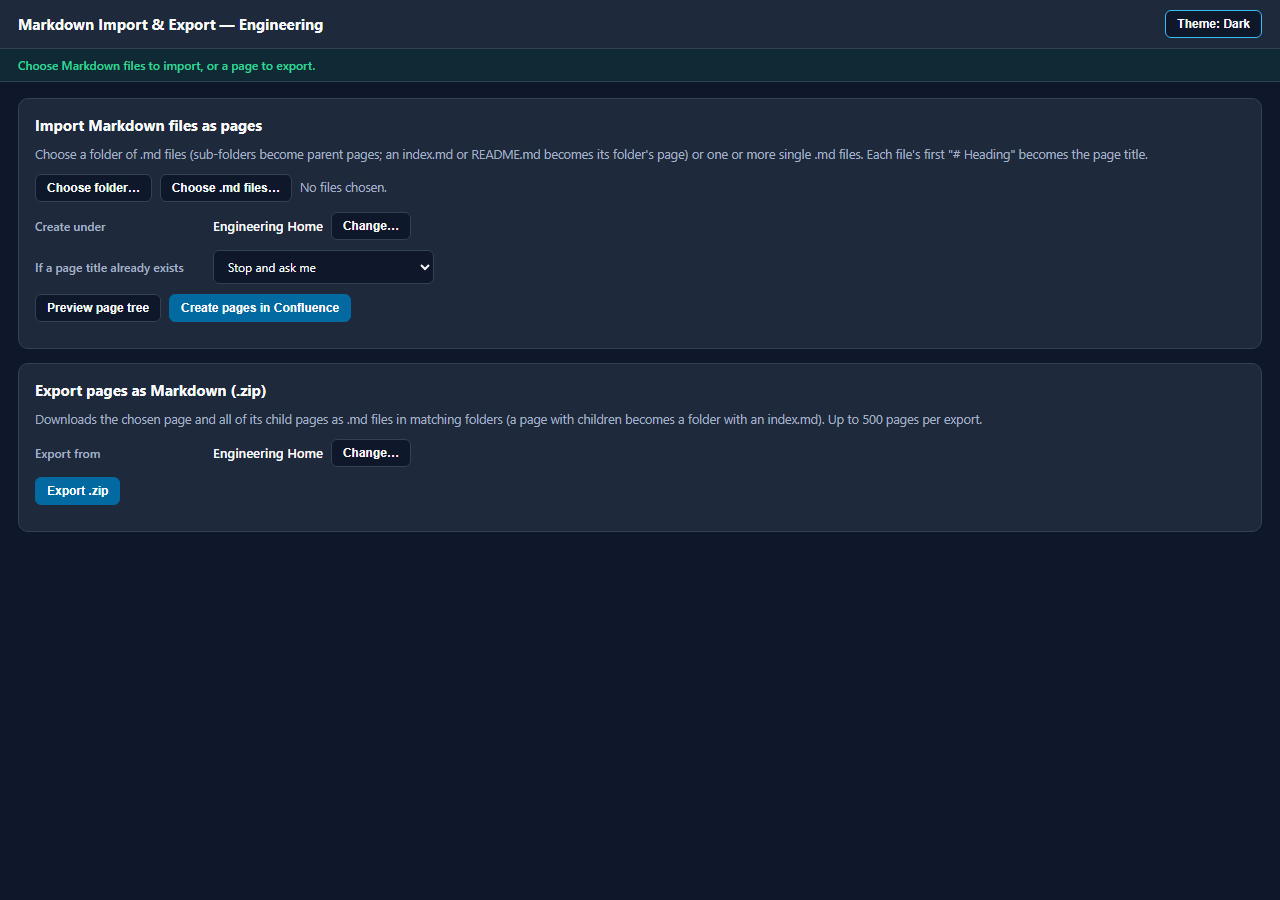
Import a folder of Markdown files
- In the space, open Markdown Import & Export from the space sidebar.
- Click Choose folder… (or Choose .md files…).
- Pick the parent page with Change…. The default is the space homepage.
- Choose what happens if a page title already exists in the space:
- Skip existing pages: keep the existing page and put any child pages under it.
- Add a number suffix: create “Title (2)”, “Title (3)” and so on.
- Otherwise the import pauses and asks you.
- Click Preview page tree and check the result.
- Click Create pages in Confluence.
How files become pages:
docs/                         Confluence
├── index.md          ──►     Docs (parent page)
├── setup.md          ──►     ├── Setup
└── guides/                   └── Guides
    ├── README.md     ──►         (content of Guides)
    └── deploy.md     ──►         └── Deploy
- Each sub-folder becomes a parent page. Its
index.mdorREADME.md, if there is one, becomes that page’s content. - A page’s title is the file’s first heading, or the file name if there is no heading.
- Existing pages are never overwritten.
Large imports run in chunks. If you close the tab, reopen the space page and click Continue import to finish where it stopped, with no duplicates.
Export pages as Markdown
- On the same space page, under Export pages as Markdown (.zip), click Change… and choose the top page.
- Click Export .zip.
The .zip mirrors the page tree. A page with children becomes a folder with an index.md, for example Root/index.md and Root/Section/Leaf.md.
Live Markdown macro
Edit a page, type /, and choose Markdown Tree Studio. Click Edit Markdown, write or paste Markdown, then Save. Headings, lists, tables, links, code blocks (readable in dark mode) and images are supported. Task list items show as plain list items. Each macro keeps its own content.
What converts, and how
| Markdown | In Confluence |
|---|---|
| Headings, lists, tables, quotes, code blocks | Native Confluence formatting |
Task list items (- [ ], - [x]) |
Plain list items; the brackets stay as text |
| Links | http, https and mailto links only; others become plain text |
| Images | https images display; http images become links; relative paths such as ./img.png become plain text, because the image files are not uploaded |
| Raw HTML | Shown as text, never run |
Limits
| Limit | Value |
|---|---|
| Files per import | 1,000 |
| Total size per import | 2 MB |
| Pages created per import | 300 |
| Pages per export | 500 |
| Macro content | 100,000 characters |
Permissions
| Scope | Why |
|---|---|
storage:app |
Save macro content and the progress of imports and exports. |
read:space:confluence, read:page:confluence |
List a space’s pages for the page picker, and read the pages you export. |
write:page:confluence |
Create the pages you import. |
You can only import into spaces where you can create pages, because the app acts with your Confluence permissions.
FAQ
Are my files uploaded anywhere? No. They are read in your browser and sent only to Confluence, as new pages.
What happens if the licence lapses? Macro content still displays. Importing, exporting and saving need an active licence or trial.